

Walchem’s online support is here to assist you with installation, troubleshooting tips, and training materials.
If you need additional support, please click here to locate your local master distributor. Walchem’s master distributors maintain a local inventory of pumps, controllers and spare parts, are fully trained to provide technical support and understand the needs of customers in their territories.
Here’s where you find quick programming guides for your WebMaster/WIND/WebAlert Controller. Print out or save to your phone for easy access!
Pre-Installation Checklist
Quick Start Guide
Windows XP USB Driver Install
Windows Vista USB Driver Install
Windows 7 USB Driver Install
Windows 8 USB Configuration
Windows 10 USB Driver Install
MAC USB Driver Install
Connecting via Direct Ethernet
Connecting via Direct Ethernet (Windows 10)
WebMaster Direct Ethernet Connection Guide – Windows 11
Here’s where you find connection support documents for your WebMaster/WIND/WebAlert Controller. Print out or save to your phone for easy access!
Please read the following instructions carefully before downloading your software.
1. Click on the Applicable link below:
– Download USB Driver Windows 7, Vista and XP
– Download USB Driver Windows 2000 (and XP if PC can’t extract a zip file)
– Instructions for Connecting to Mac
1. Click on the Applicable link below:
– Download USB Driver Windows 7, Vista and XP
– Download USB Driver Windows 2000 (and XP if PC can’t extract a zip file)
– Instructions for Connecting to Mac
2. When asked where you want to save the file, save it to your desktop.
3. Double click on the file you just saved. A screen like this will appear:
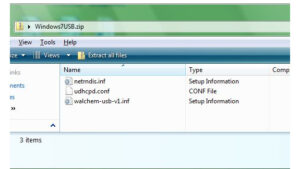
4. Click “Extract all files” Save the files to your C: Drive.
5. Using the Quick Start Guide, install the driver.
– When you get to this screen, click “Include this location…” and then type C:\\

